Youll see the indexes dialog box shown figure
| 318 | CHAPTER 11 |
|
|---|
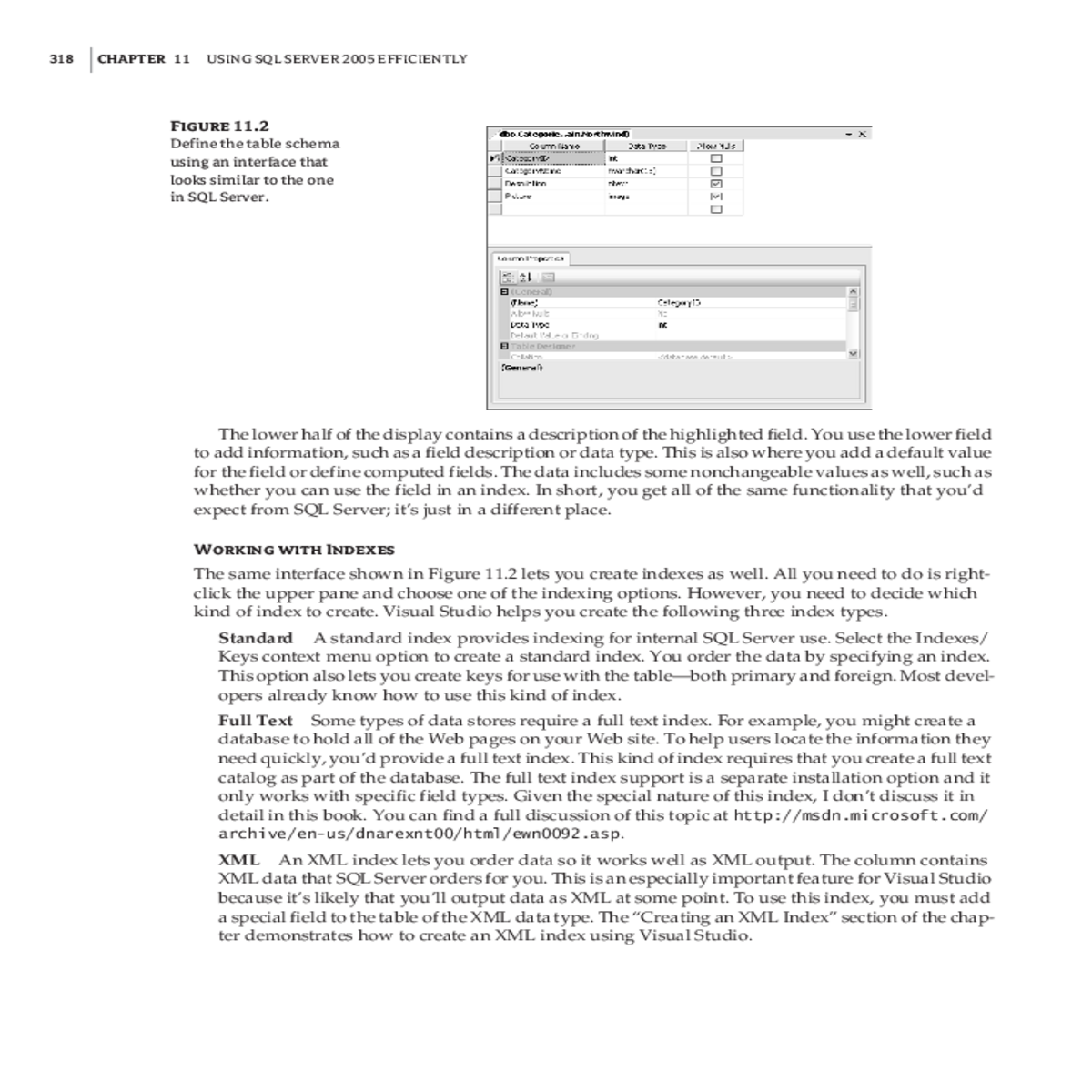
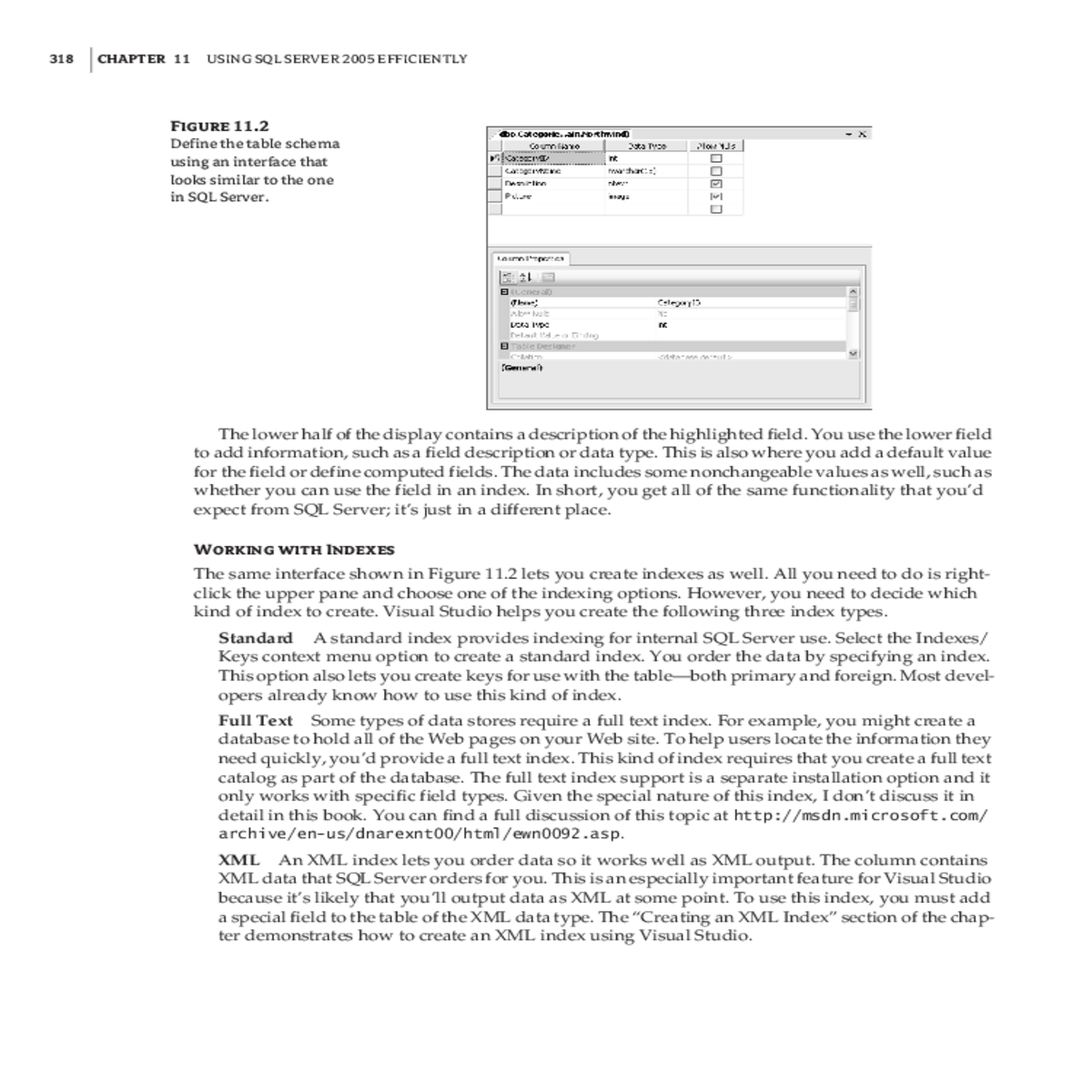
Figure 11.2
Define the table schema
using an interface that
looks similar to the one
in SQL Server.Standard A standard index provides indexing for internal SQL Server use. Select the Indexes/ Keys context menu option to create a standard index. You order the data by specifying an index. This option also lets you create keys for use with the table—both primary and foreign. Most devel-opers already know how to use this kind of index.
Full Text Some types of data stores require a full text index. For example, you might create a database to hold all of the Web pages on your Web site. To help users locate the information they need quickly, you’d provide a full text index. This kind of index requires that you create a full text catalog as part of the database. The full text index support is a separate installation option and it only works with specific field types. Given the special nature of this index, I don’t discuss it in detail in this book. You can find a full discussion of this topic at http://msdn.microsoft.com/ archive/en-us/dnarexnt00/html/ewn0092.asp.
| TIP | ACCESSING THE DATABASE FROM VISUAL STUDIO | 319 |
|---|---|---|
Standard indexes work with a subset of the data types that SQL Server supports. For example, you can’t create a standard index for the ntext data type, but you can create it for fields with a specific size such an int or timestamp. To create a standard index, right-click any of the columns and choose Indexes/Keys from the context menu. You’ll see the Indexes/Keys dialog box shown in Figure 11.3. In fact, this dialog box already has one index, CategoryName, and one key, PK_Categories, defined.
Click Add to add a new index to the list. You must define the index by clicking the ellipsis (...) in the Columns field. This entry displays the Index Columns dialog box where you can choose one or more fields to use for the index. The Index Columns dialog box only displays fields that you can index. As you add fields to the list, you’ll see fewer options—you can only add a field one time to an index. Most devel-opers also provide a new, descriptive, entry in the (Name) field and a Description field entry so that it’s easier to remember the purpose for the index later.
A relationship between two tables exists when one table defines its content based on the content of another table. For example, the Products table contains a list of products, each of which belongs to a particular product category. Consequently, even a category in the Categories table can have many products listed under it. A customer may request a beverage (the category), but you can’t fulfill the request until you know the specific beverage (the product).
To define a new relationship, you begin in the table that needs the data from the other table. The Products table requires a list of Categories, so you’d begin in the Products table. Open the Foreign Key Relationships dialog box by right-clicking anywhere within the table definition and choosing Rela-tionships from the context menu. Click Add. The IDE automatically creates a new entry for you that