Windows starts the routing and remote access service

� Server
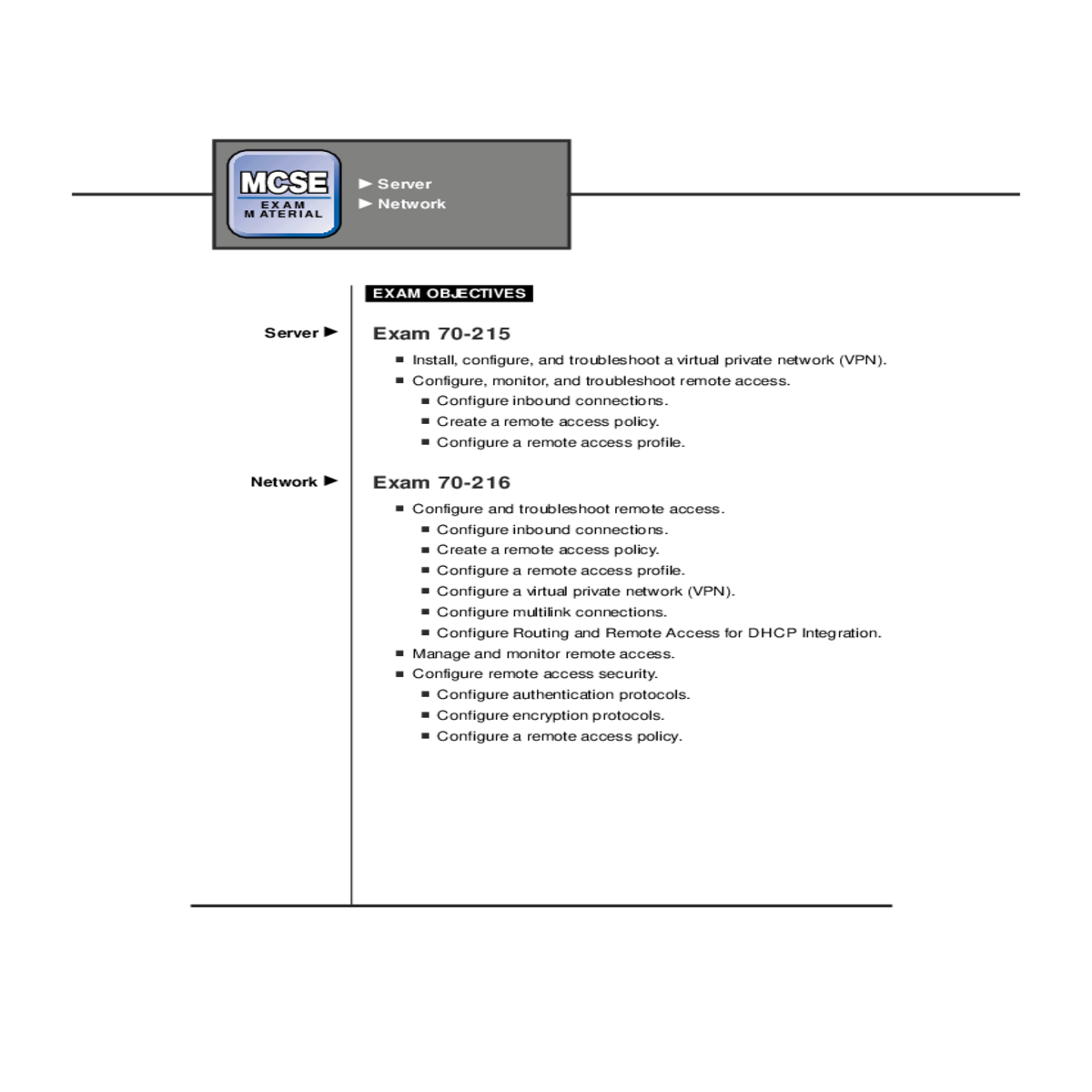
I Install, configure, and troubleshoot a virtual private network (VPN). I Configure, monitor, and troubleshoot remote access.
I Configure inbound connections.
I Create a remote access policy.
I Create a remote access policy.
I Configure a remote access profile.
I Configure authentication protocols.
I Configure encryption protocols.
T mobile workforce. With remote access, users can connect to their company’s his chapter is all about remote access in a Windows 2000 environment. Remote access is a critical networking function for today’s highly
network from home, from a hotel room, or from any computer connected to the Internet. The same service that provides routing functionality in Windows 2000 also provides remote access capability — the Routing and Remote Access service.
| 1150 |
|---|
Chapter Pre-Test
1. What is a virtual private network (VPN) connection?
6. What is a remote access policy?

In this chapter I’ll tackle the other half of this service — remote access. The Routing and Remote Access service is only available on Windows 2000 Server computers — in other words, it’s not available on Windows 2000 Professional computers.
EXAM TIP
1152 Part IV M Networking and Interoperability
Remote Access Connection Types
I X.25
I Virtual private network (VPN), including PPTP and L2TP
Chapter 17 M Managing Remote Access 1153
The Point-to-Point Multilink Protocol is an extension of PPP. Point-to-Point Multilink Protocol combines the bandwidth from multiple physical connections into a single logical connection. This means that multiple modem, ISDN, digital link, or X.25 connections can be bundled together to form a single logical connection with a much higher bandwidth than a single connection can support.
The Point-to-Point Tunneling Protocol (PPTP) permits a virtual private net-work (VPN) connection between two computers over an existing TCP/IP network connection.The existing TCP/IP network connection can be over the Internet,a local area network,or a remote access TCP/IP connection.All standard transport protocols are supported within the PPTP connection. The Layer Two Tunneling Protocol (L2TP), like PPTP, permits a VPN con-nection between two computers over an existing TCP/IP network con-nection.The major difference between PPTP and L2TP is that PPTP uses Microsoft Point-to-Point Encryption (MPPE) while L2TP uses IPSec for encryption. In addition, L2TP is rapidly becoming the industry standard tunneling protocol. Currently, only Windows 2000 remote access clients and remote access servers support L2TP.
The Serial Line Internet Protocol (SLIP) is an older connection protocol commonly associated with UNIX computers. SLIP connections are only supported on the client side of the remote access connection — a Windows 2000 remote access server doesn’t support incoming SLIP connections.The only transport protocol that SLIP supports is TCP/IP.
The Microsoft RAS protocol (also called AsyBEUI) is supported by the Windows 2000 Routing and Remote Access service to enable inbound connections from legacy client computers, including MS-DOS,Windows for Workgroups, and Windows NT 3.1.The only transport protocol that can be used with AsyBEUI is NetBEUI.
I NetBEUI
I AppleTalk
Enabling and Configuring Remote Access
The Routing and Remote Access Service is installed by default on all Windows 2000 Server (and Advanced Server) computers. However, remote access is not automatically enabled.
ENABLING REMOTE ACCESS WHEN ROUTING HAS NOT BEEN ENABLED
1. Select Start ➪ Programs ➪ Administrative Tools ➪ Routing and Remote Access.
the “Virtual private network (VPN) server” option. Figure 17-1 shows this screen
configured for a remote access server. Click Next.
If all the protocols you need are listed, accept the default option of “Yes, all of the
available protocols are on this list.” Click Next.

8. In the Managing Multiple Remote Access Servers screen, choose whether this remote access server will authenticate remote access clients directly, or will use a RADIUS server for client authentication. If you choose to use a RADIUS server, you will be prompted for a primary and alternate RADIUS server host name and for a shared secret password that this server will use to connect to the RADIUS server. Make your selection and click Next.
9. In the Completing the Routing and Remote Access Server Setup Wizard screen, click Finish.
If you have previously enabled routing on your Windows 2000 Server computer, the steps to enable remote access are much simpler.
STEP BY STEP
FIGURE 17-2 Enabling remote access when routing is already enabled
| 1158 | Continued | |
|---|---|---|
| STEP BY STEP |
Once remote access is enabled, you want to configure it, and you’ll cer-tainly want to add and configure inbound connection ports. I’ll describe how to perform these tasks in the following sections.
Configuring the Properties of the Remote Access Server
2. In the left pane of the Routing and Remote Access dialog box, right-click the remote access server you want to configure, and select Properties from the menu
that appears.
Chapter 17 M Managing Remote Access 1159
installed on the server, and event logging. I’ll discuss each of these proper-ties in the following sections.
The first item you can configure on this tab is an authentication provider. An authentication provider determines if the remote user’s cre-dentials are valid, and whether the remote user has permission to connect to the remote access server.The possible choices in this drop-down list box are Windows Authentication and RADIUS Authentication.
If Windows Authentication is selected, the Windows 2000 remote access server compares the user’s name and password against information stored in the local user account database on the remote access server, or against information stored in Active Directory. Windows Authentication is the most commonly used authentication provider, and is always selected unless a RADIUS server is used.
If you don’t want to track accesses and attempted accesses to the Windows 2000 remote access server, select None. Otherwise, select an accounting provider that matches the authentication provider you selected in the top part of this dialog box.If you select RADIUS Accounting,centralized accounting of activity on all remote access servers is maintained by the RADIUS server. If you select RADIUS Accounting, you must configure this remote access server to use one or more RADIUS servers.To do this, click Configure. Finally, you can select the authentication methods that will be used by this remote access server to authenticate remote access clients. To select these methods, click Authentication Methods. Figure 17-4 shows the Authentication Methods dialog box. Notice that two versions of Microsoft encrypted authentication are selected by default.
I Extensible authentication protocol (EAP): This protocol is designed to enable the remote access client and the remote access server to negotiate a common authentication method. EAP can be used with Transport Layer Security (TLS) to support the use of a smart card and PIN number to authenticate remote users. EAP can also be used with biometrics devices, such as a thumbprint reader.
I Microsoft encrypted authentication version 2 (MS-CHAP v2):This protocol uses a mutual authentication process that enables the remote access client to verify the server, and the remote access server to verify the client.This protocol causes the remote access server to send a challenge to the remote access client that includes a session key and a challenge key.Then the remote access client responds by encrypting and sending the remote user’s name, pass-word, session key, and challenge key to the remote access server.The remote access server (or RADIUS server) verifies the remote user’s information and sends an authentication response back to the client.The client verifies the response, and completes the connec-tion to the remote access server.Version 2 of Microsoft encrypted authentication is a more secure authentication method than the original version and provides stronger security.
I Shiva Password Authentication Protocol (SPAP): This pro-vides support for remote users that use the Shiva LANRover client to connect to the remote access server.The protocol works simi-larly to CHAP but is generally less secure.
I Unencrypted password (PAP): This is a clear text credential exchange protocol that you should avoid unless the remote access client does not support any of the preceding encryption protocols, and security is not a major concern.
Chapter 17 M Managing Remote Access 1163
Configuring IPX
You can configure several IPX settings on the IPX tab in a Windows 2000 remote access server’s Properties dialog box.This tab is only available when the NWLink IPX/SPX/NetBIOS Compatible Transport Protocol is installed on the remote access server. Figure 17-6 shows the IPX tab. The first item you can configure on this tab is the “Allow IPX-based remote access and demand-dial connections” check box. If you clear this check box (which is selected by default), remote access clients won’t be able to use IPX-based protocols, such as NWLink IPX/SPX/NetBIOS Compatible Transport Protocol, to connect to the remote access server.
The next item you can configure is a check box that enables network access for remote clients and demand-dial connections. Selecting this check box enables IPX routing on the remote access server.This check box is selected by default. Select this check box if remote access clients will access services on the network to which the remote access server is con-nected by using an IPX-based protocol.If you clear this check box,remote access clients will only be able to use IPX to access resources on the remote access server, but not the network.
The next several options control how the remote access server assigns IPX network and node numbers to remote access clients.You can either configure the remote access server to automatically assign IPX network numbers, or configure the server to assign these numbers from a prede-fined range.
Configuring NetBEUI
There are a couple of configurable options on the NetBEUI tab in a Windows 2000 remote access server’s Properties dialog box. This tab is only available when NetBEUI is installed on the remote access server. Figure 17-7 shows the NetBEUI tab. Notice that by default, remote access clients that use NetBEUI are permitted to access the remote access server and the entire network to which the remote access server is connected.
Configuring AppleTalk
There is only one configurable option on the AppleTalk tab in a Windows 2000 remote access server’s Properties dialog box.This tab is only available when the AppleTalk protocol is installed on the remote access server.
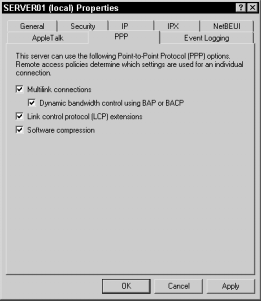
You can configure several PPP settings on the PPP tab in a Windows 2000 remote access server’s Properties dialog box. Figure 17-8 shows the PPP tab. Notice that all of the options in this dialog box are selected by default.
Chapter 17 M Managing Remote Access 1167
“Dynamic bandwidth control using BAP or BACP” is selected, the remote access server and remote access client are permitted to negotiate the dynamic addition and deletion of physical connections as bandwidth needs change during the remote access session.
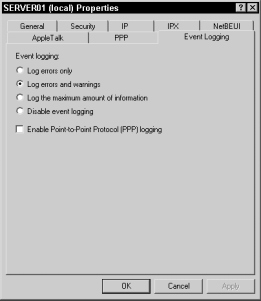
FIGURE 17-9 The Event Logging tab