Language:EN
Pages: 2
Rating : ⭐⭐⭐⭐⭐
Price: $10.99
Page 1 Preview
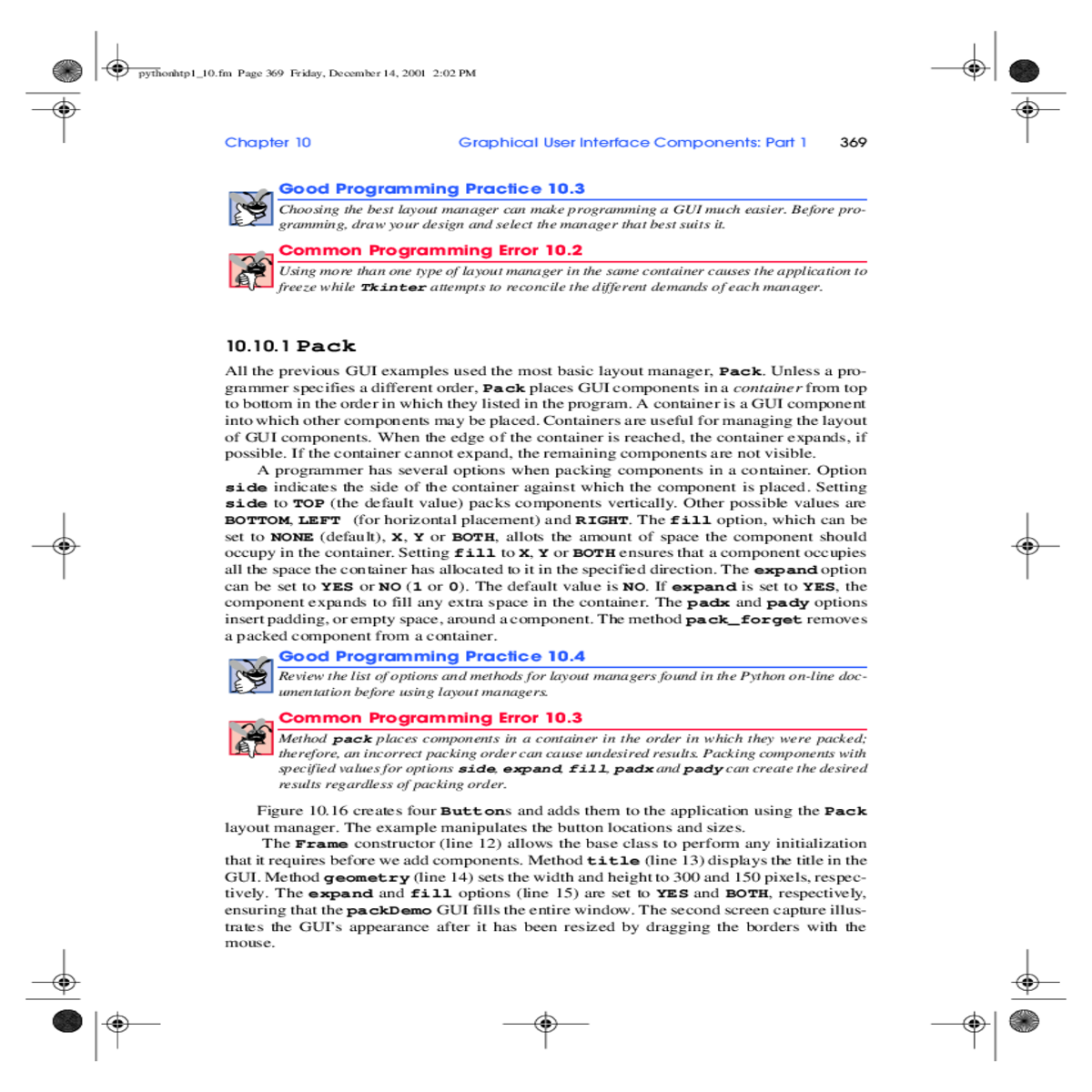
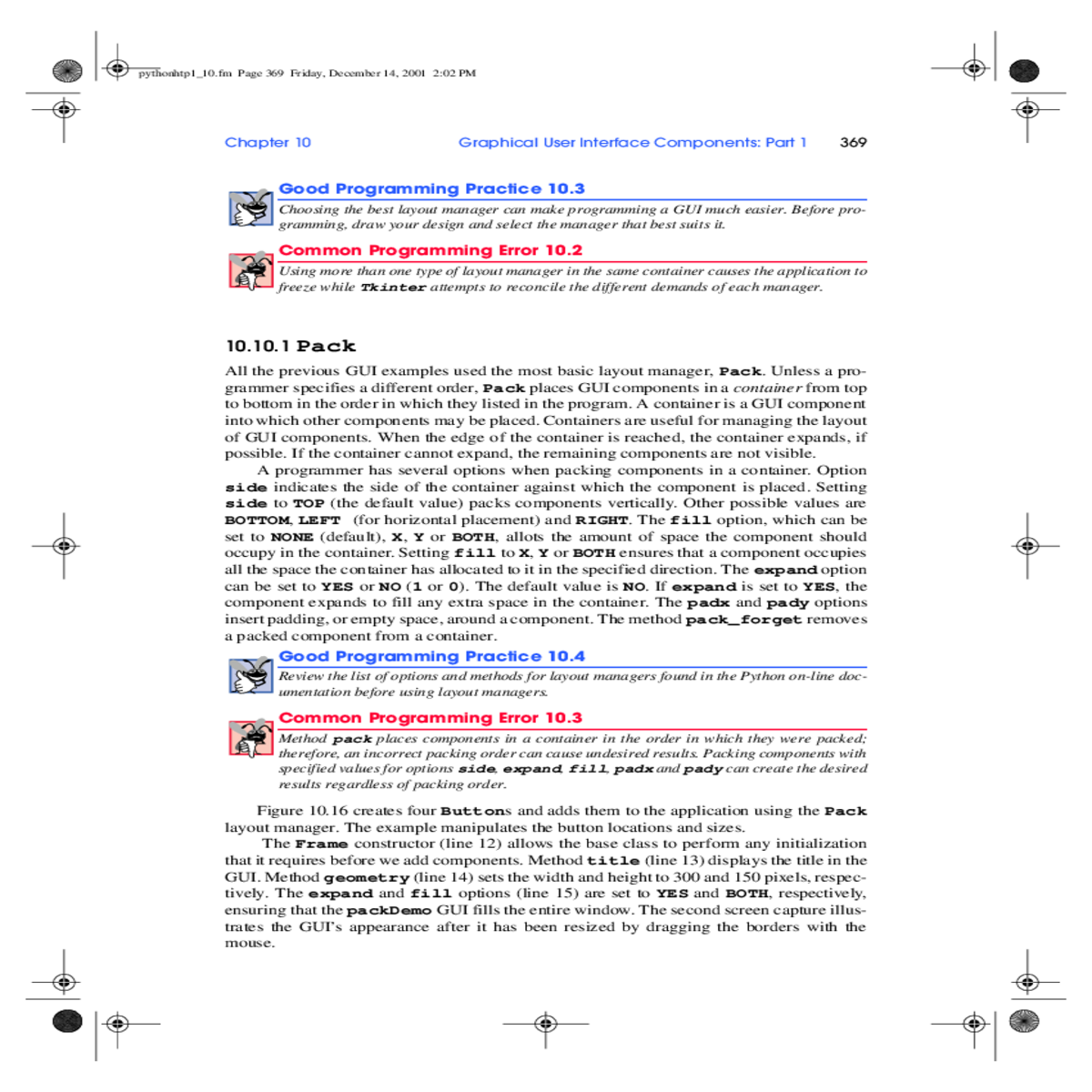
method title line displays the title the gui

Method title line displays the title the gui

pythonhtp1_10.fm Page 369 Friday, December 14, 2001 2:02 PM

Chapter 10

Common Programming Error 10.2
Using more than one type of layout manager in the same container causes the application to freeze while Tkinter attempts to reconcile the different demands of each manager. 10.2

10.10.1 Pack

into which other components may be placed. Containers are useful for managing the layout
of GUI components. When the edge of the container is reached, the container expands, if

side indicates the side of the container against which the component is placed. Setting side to TOP (the default value) packs components vertically. Other possible values are BOTTOM, LEFT (for horizontal placement) and RIGHT. The fill option, which can be set to NONE (default), X, Y or BOTH, allots the amount of space the component should occupy in the container. Setting fill to X, Y or BOTH ensures that a component occupies all the space the container has allocated to it in the specified direction. The expand option can be set to YES or NO (1 or 0). The default value is NO. If expand is set to YES, the component expands to fill any extra space in the container. The padx and pady options insert padding, or empty space, around a component. The method pack_forget removes a packed component from a container.

Good Programming Practice 10.4
Review the list of options and methods for layout managers found in the Python on-line doc-umentation before using layout managers. 10.4

Figure 10.16 creates four Buttons and adds them to the application using the Pack layout manager. The example manipulates the button locations and sizes.

The Frame constructor (line 12) allows the base class to perform any initialization that it requires before we add components. Method title (line 13) displays the title in the GUI. Method geometry (line 14) sets the width and height to 300 and 150 pixels, respec-tively. The expand and fill options (line 15) are set to YES and BOTH, respectively, ensuring that the packDemo GUI fills the entire window. The second screen capture illus-trates the GUI’s appearance after it has been resized by dragging the borders with the

370

Graphical User Interface Components: Part 1

Chapter 10

1
2
3
4
5
6
7
8
9
10
11
12
13
14
15
16
17
18
19
20
21
22
23
24
25
26
27
28
29
30
31
32
33
34
35
36
37
38
39
40
41
42
43
44
45
46
47
48
49
50
51
52
53

Frame.__init__( self )
self.master.title( "Packing Demo" ) self.master.geometry( "400x150" )
self.pack( expand = YES, fill = BOTH )

self.button1 = Button( self, text = "Add Button", command = self.addButton )

# Button component placed against left side of window # fills all available horizontal space
self.button3.pack( side = LEFT, expand = YES, fill = X )

self.button4 = Button( self,
text = "expand = YES, fill = Y" )

if __name__ == "__main__":
main()

Fig. 10.16 Pack layout manager demonstration. (Part 1 of 2.)

You are viewing 1/3rd of the document.Purchase the document to get full access instantly

Immediately available after payment
Both online and downloadable
No strings attached
How It Works
Login account
Login Your Account
Place in cart
Add to Cart
send in the money
Make payment
Document download
Download File
img

Uploaded by : Tara Smith

PageId: DOC36131B0