Language:EN
Pages: 11
Rating : ⭐⭐⭐⭐⭐
Price: $10.99
Page 1 Preview
file data and attributes run program files change

File data and attributes run program files change read permission create folders
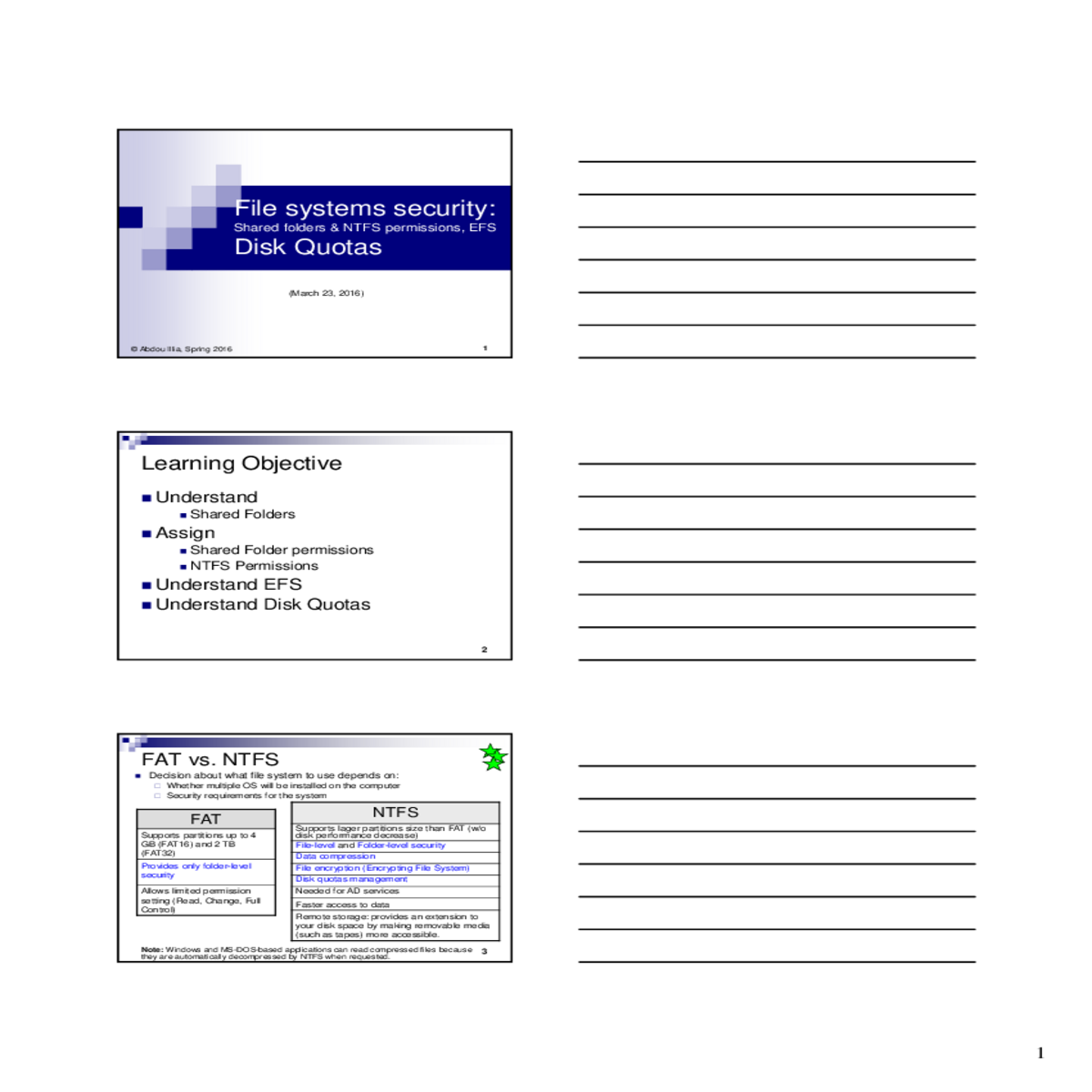
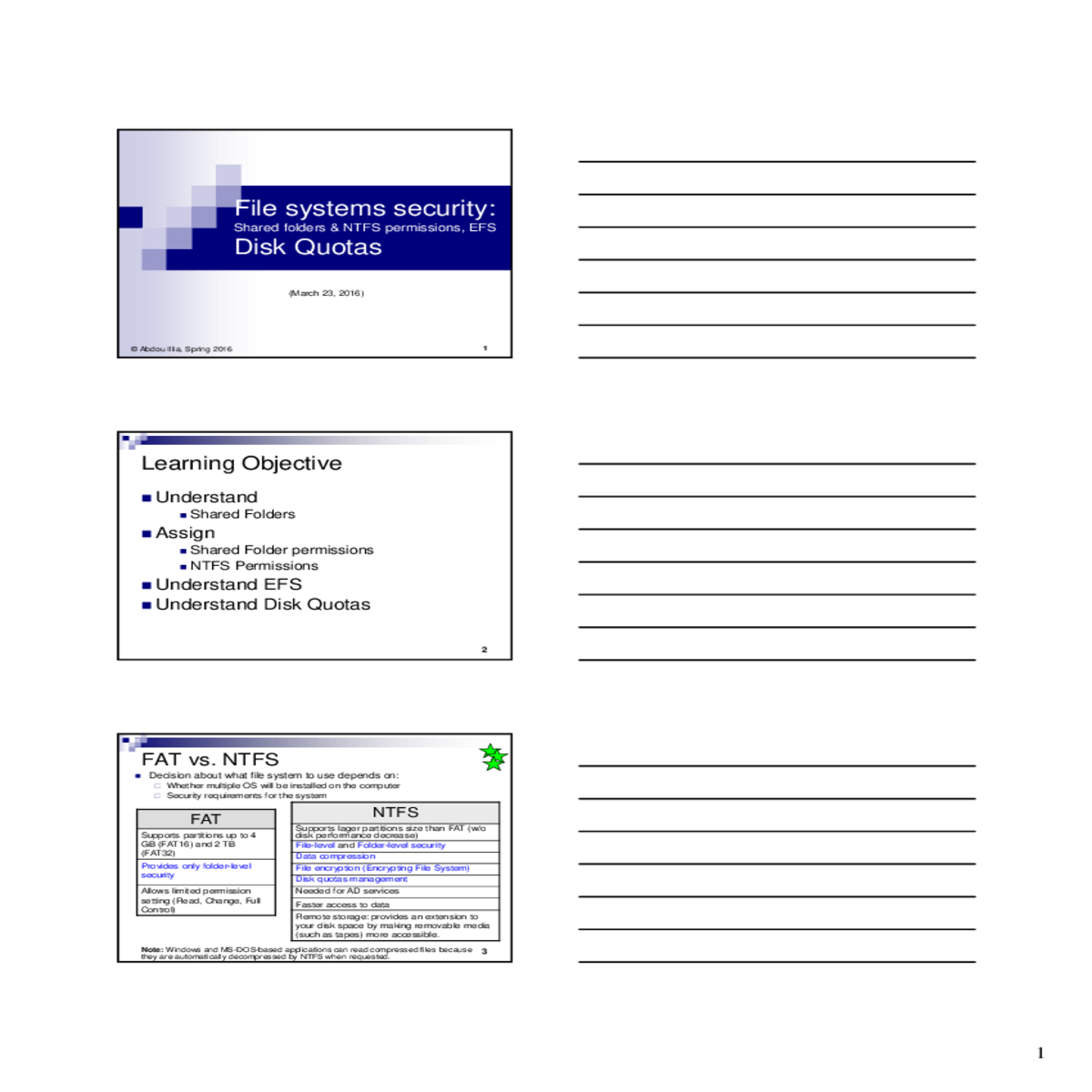
File systems security: Shared folders & NTFS permissions, EFS Disk Quotas

Understand
Shared Folders
Assign
Shared Folder permissionsNTFS Permissions
Understand EFS
Understand Disk Quotas

2

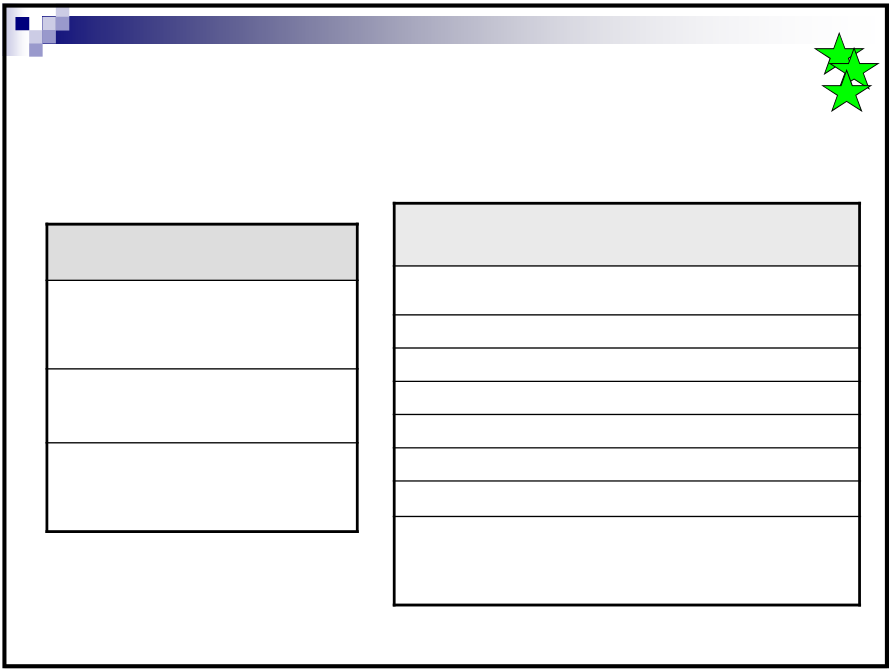
FAT
Supports partitions up to 4 GB (FAT16) and 2 TB
(FAT32)

NTFS
Supports lager partitions size than FAT (w/o
disk performance decrease)
File-level and Folder-level security
Data compression

Faster access to data

Remote storage: provides an extension to
your disk space by making removable media
(such as tapes) more accessible.

Shared Folder ?

Requirements for creating a shared folder:

Any supported File system (FAT, NTFS)

Note: Users that are granted the Create Permanent Shared Objects right can
also create shared folders on the computer where the right is assigned

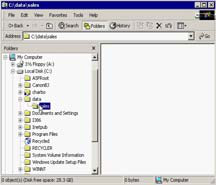
To share a folder on a computer:

1)

Click Start. Then click Run

2)
1)
3) 2)
3)

Click OK.

4)

Click Properties

OR 5)
1)
6)
2)
7)

Click Apply, and then OK.

3)

5

Subfolder 1

------------

Subfolder 4

------------

File 1 File 2

Shared Folder Permissions
Read - Display folder names, filenames, file data and attributes
- Run program files
Change Read permission +
- Create folders, add files to folders, change data in files, append data to files, change files attributes, delete folders and files.

7

Multiple Permissions (The Combination Rule)
If a user is assigned a permission for a Shared folder and
If the use user belongs to a group to which a different permission is
assigned,
Then the user’s effective permissions are the combination of the user and
group permissions

Deny overrides Allow
If you deny a shared folder permission to a user and
If you allow the same permission to a group the user belongs to
Then the user will not have that permission.
Use intuitive share names so that users can easily recognize and locate resources.

10

NTFS permissions
If permissions at file level are required, and/orIf more specific permissions are required
Then, NTFS permissions must be used

12

Standard NTFS permissions

Read

Read and Execute

Modify

permissions.

Extended NTFS permissions

Execute File
List Folder / Read File
Read Attributes
Read Extended Attributes Create Files / Write Data
Write Attributes
Write Extended Attributes Delete Subfolders and Files Read Permissions
Change Permissions
Take Ownership

each resource (Folder, file, etc.) you can

assign permissions for.

Access Control List
SubFolder1 File1.txt
File2.txt
SubFolder2 File1.doc
File2.exe

SubFolder3

15

Permission Inheritance

By default, permissions assigned for the parent folder are inherited at subfolder
and file level

When a file/folder is copied or moved to another NTFS partition on a different
physical disk, it inherits the permissions & attributes from the destination folder

When a file/folder is moved within an NTFS partition, it retains its permissions

to Golden rule
Folders/Subfolders Sharing
folders/files
Setting
permissions
FAT NTFS FAT
YES YES YES (but limited)

Files

NO NO NO

YES

The Golden rule do not apply to encrypted files/folders

EFS is used to encrypt data stored on storage media or data in transit

With EFS, in addition to access rights, a de- encryption key is needed to read a file*.

If someone got a copy of your file, or took ownership of it, they cannot read its content.

1.

Right-click the folder you want to encrypt

2.

Click Properties

3.
20

Exercise

Create a user account for yourself with the username last (where last is your last name)Log off as Administrator, and logon using the last user account you have created
Create a folder called Lab3-XX (where XX is your computer number) directly under the root of the C: drive.

7

Enable/Configure Disk Quotas

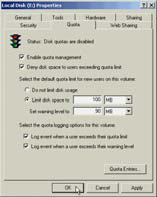
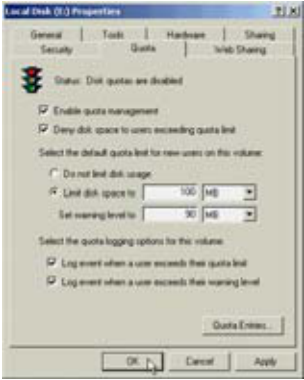
Enable quota management: Sets up quota management and starts tracking disk usage

Deny disk space to users
exceeding quota limits: Users can’t write new information after
reaching their quotas

Set warning level to: Sets the
default disk space that users can occupy that will trigger a warning message

Log event when a user exceeds their quota limit: An event is
entered in the System log when a user reaches his or her quota

1)
2)
3)
4)
5)
6)

Open My Computer
Right-click the volume, and click Properties Click Quota tab
Click the Quota Entries button
Right-click the appropriate user account Click Delete

27

9

Configuring Auditing

1) Right-click the folder/file you want to audit
2) Click Properties
3) Click Security tab
4) Click Advanced button
5) Click Auditing tab in the Access Control Settings dialog box, and click Add
6) Double-click the group or user you want to audit 7) Check the Successful or Failed events to audit 8) Click OK as many times as needed.

Taking ownership

10

Disk Quotas: Summary Questions

The Computer Planning Committee at your company is working to project Windows Server 2003 disk capacity needs for the next two years, as part of the computer equipment budgeting process. Because you are part of the committee, they asked you if there is any way to gather statistics on present disk use over a three-month period to help in making projections. How can you obtain the statistics that they want?
a)
b)
c)
d)

There is no easy way to gather statistics except to ask all employees to calculate the space they use. 31

Disk Quotas: Summary Questions

The management in your organization wants to limit all employees to 7 MB of disk space, on each volume, which they can use to store files in shared folders and in home folders. What is the best way you can accomplish this?
a)
b)
c)

3)

Sara and Richard each have a disk quota of 2 MB. Recently Sara has taken ownership of an 800 KB database file previously owned by Richard. How does this action affect their disk quotas?
a)

When ownership of a file is transferred, that file is exempt from the disk quota allotment.

b)
c
d)

Disk Quotas: Summary Questions

4)

The lead research scientist in your company needs to work over the weekend to prepare information for a lecture he is presenting on Monday. He does not know how close he is to reaching his disk quota and is calling you to find out. How can you determine where he
stands?
a)
b)
c)

Open the Command prompt window and use the Quota command along with his account name to find out.

33

You are viewing 1/3rd of the document.Purchase the document to get full access instantly

Immediately available after payment
Both online and downloadable
No strings attached
How It Works
Login account
Login Your Account
Place in cart
Add to Cart
send in the money
Make payment
Document download
Download File
img

Uploaded by : Ismail Hussain

PageId: DOC1EA2660