Download sql server management studio ssms
Microsoft SQL Server Installation Guide
For SQL Server 2019 Developer
January 2020
2
Introduction
SQL Server Overview
You or may not have various opinions about SQL Server and other database
systems, but you can be confident that SQL Server has many of the
advanced features available in relational database management systems,
and that SQL Server is widely used worldwide. SQL Server supports many
of the ANSI/ISO SQL standards, so when you learn SQL Server you are
mainly close to the portable standards. SQL Server, developed by
Microsoft, runs on Windows platforms, and on Linux as well. SQL Server
is scalable, and supports both clustering and cloud computing through
Azure to surpass the performance and reliability of any single platform.
SQL Server is an in-demand, capable database system.
SQL Server Editions
For additional details on the features supported by both the Developer (Enterprise), Express as well as other editions please refer to the Features Supported by the Editions of SQL Server which can be found here:
SQL Server Express Edition
Once the download is complete, go to the destination folder (i.e. downloads folder on your computer). The installation file will look something like this:

2.Choose the Media Location path. Note the minimum free space and download size and press Install.
5.On the Product Key page make sure that the selected Edition is “Developer” click Next.
6.On the License Terms page, check the box next to “I accept the license terms” and click Next. 7.Setup will check if needed install Setup Support Files. Click Next when complete.
| • |
|
|---|
9

| • |
|
|---|
11
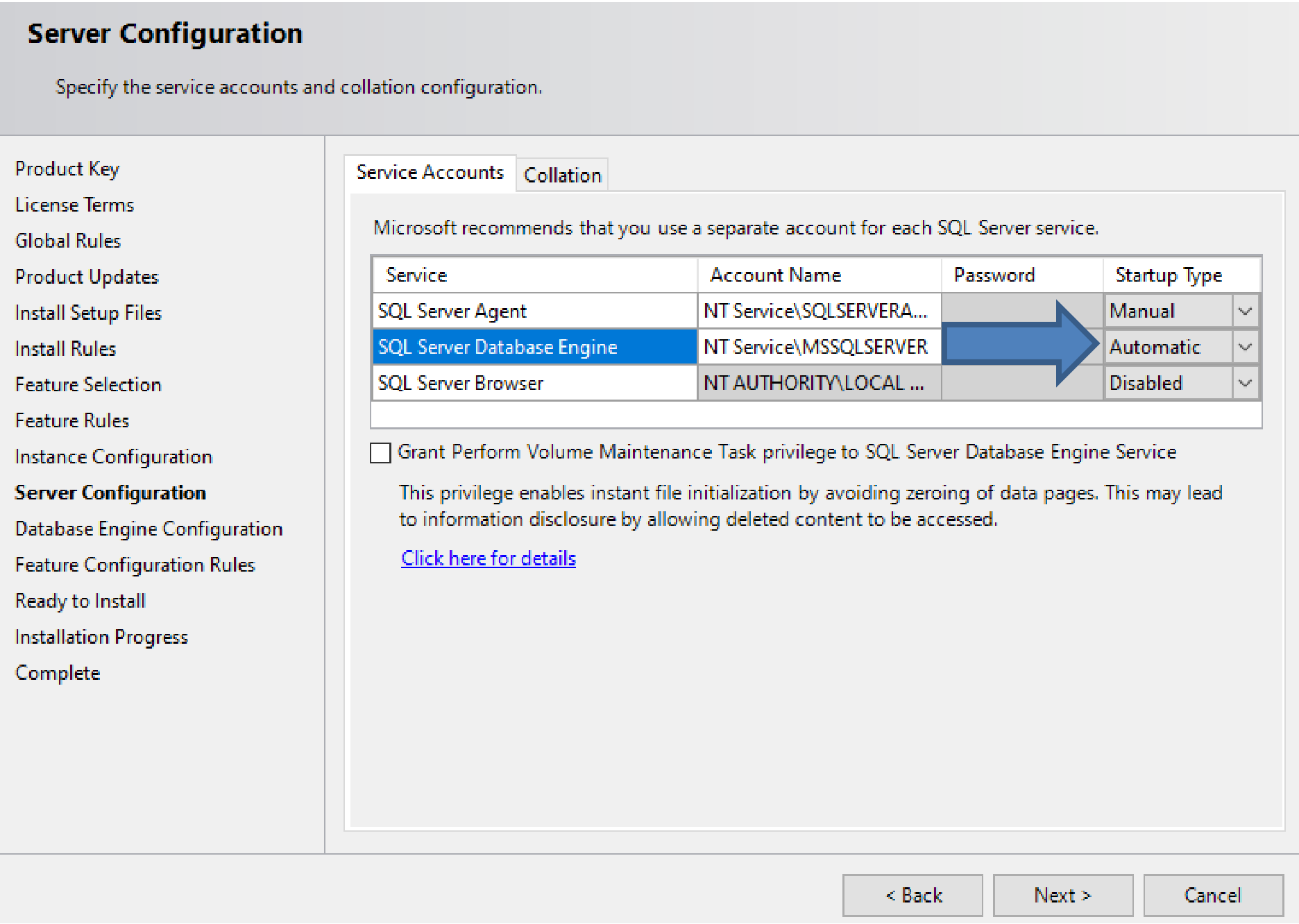
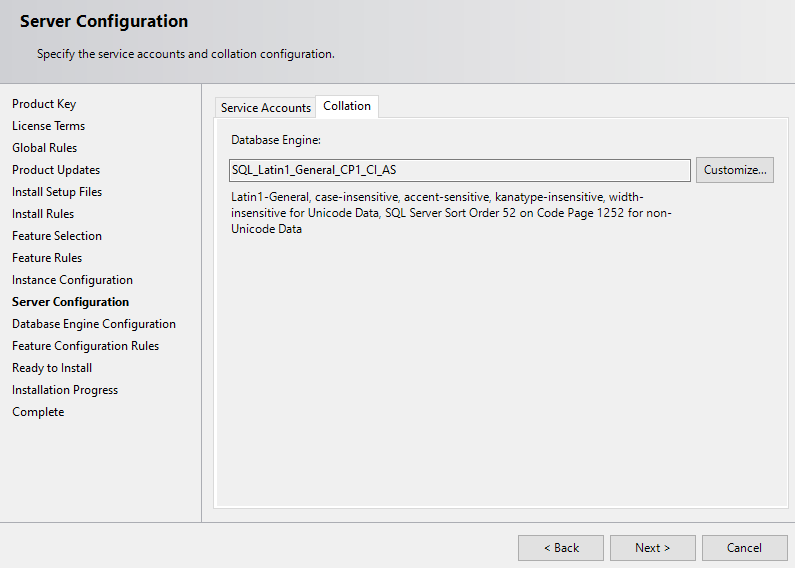
•IMPORTANT: Make sure to add users (such as your account) to SQL Server Administrators (click on Add Current User) if it is not already there.
| • |
|---|
different parts of the DBMS go. For example, in production environments the LOG components should go on a separate disk array, which will improve performance of the system.
| • | Review selected features and click Install, | |
|---|---|---|
|
||
| • | ||
| • | ||
|
||
|
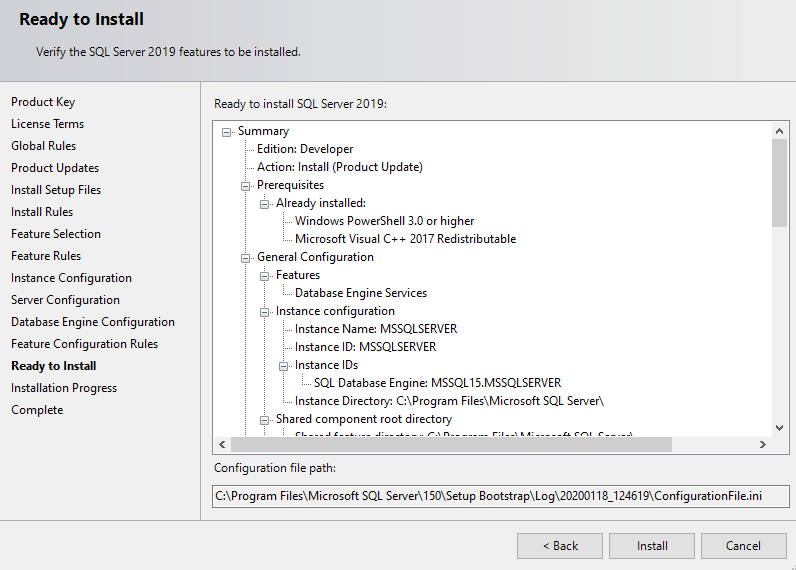
It is required that you install the Management Tools Complete for all courses.
Download SQL Server Management Studio (SSMS)
You will be brought to a web page to download the latest release of SQL
Server Management Studio.
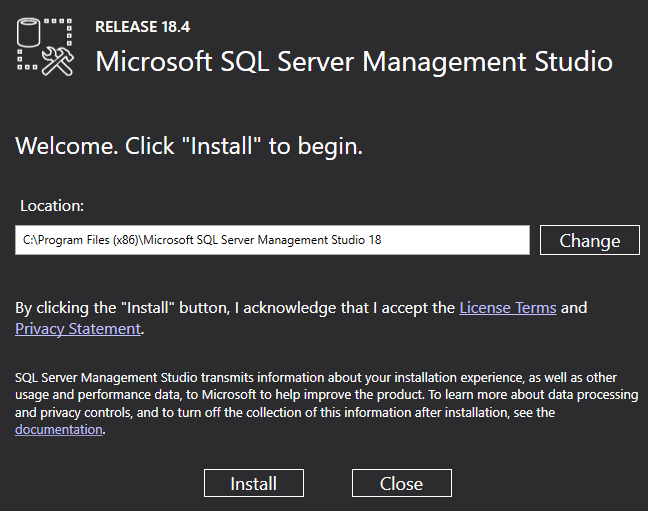
Click the “Install” button to begin. A progress screen will appear similar to the following.
Working with and connecting to SQL Server
You have installed both SQL Server and SSMS. There are just a few more steps you need in order to start using your database to complete assignments -- connecting to your database and creating a database for assignments.
the Winds screen and type in Services in the search
• Scroll down the list until you see the SQL Server services.
Notes:
• |
|
|---|
Saves your SQL commands as .SQL files.
Creates a new query window for you to type your SQL commands.
 |
|---|
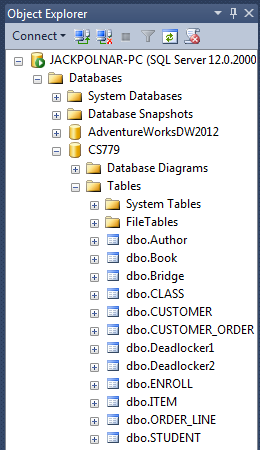
Query window where you can type in your SQL query commands.
18
Creating a Database
You are almost ready to begin working on assignments, but one more step
is needed: creating a database.
Now to be sure, there is already a default database called “master”, but it is perilous to use that database for anything of substance. Master is a system database which contains information about the server’s configuration; that database is critical to the operation of SQL Server itself, and if it gets corrupted, or runs out of space, the entire SQL Server instance is at risk. System databases are often located on drives with limited space, and if we need to fail over our instance to another instance, we cannot usually restore the master itself since each instance has its own configuration. Suffice it to say, for assignments it is prudent to create another database.