3. sql server management studio (ssms)
SQL Server 2008 Tutorial
Source: http://www.quackit.com/sql_server/tutorial/
This tutorial is adopted from www.quackit.com. It is part of the complete tutorial posted at the above source. The tutorial offers additional information than what we need for the course at this time. For now, you should practice at least the first 7 lessons.
This SQL Server tutorial is for anyone who wants to learn how to use SQL Server 2008. It assumes a basic understanding of databases and how they work.
Table of Contents
SQL Server Editions
SQL Server - Management Studio
SQL Server - Query Designer
SQL Server Views
1. About SQL Server
SQL Server is much more robust and scalable than a desktop database management system such as Microsoft Access. Anyone who has ever tried using Access as a backend to a website will probably be familiar with the errors that were generated when too many users tried to access the database!
Although SQL Server can also be run as a desktop database system, it is most commonly used as a server database system.
Server Database Systems
SQL Server Editions
The next lesson discusses the various editions of SQL Server 2008.
2. SQL Server 2008 Editions
If you are serious about installing (or upgrading) SQL Server, this page provides a quick overview of your options.
The Editions
Workgroup Edition
Data management and reporting platform providing secure, remote synchronization, and management capabilities for running branch applicationsDeveloper Edition
May be installed and used by one user to design, develop, test, and demonstrate your programs on as many systems as needed
SQL Server Edition in this Tutorial
The examples in this tutorial were made using the (free) Express edition of SQL Server 2008. To be more precise, it is SQL Server 2008 Express with Advanced Services.
SQL Server 2008 Express with Advanced Services includes the following features:
The Express edition also comes as SQL Server 2008 Express with Tools, which only includes the SQL Server database engine and the SQL Server Management Studio Basic, and SQL Server 2008 Express (Runtime Only) which doesn't include the SQL Server Management Studio.
While the free version of SQL Server does have its limitations, it is a good start for those starting out with SQL Server. You can download SQL Server 2008 Express from Microsoft's website.
3. SQL Server Management Studio (SSMS)
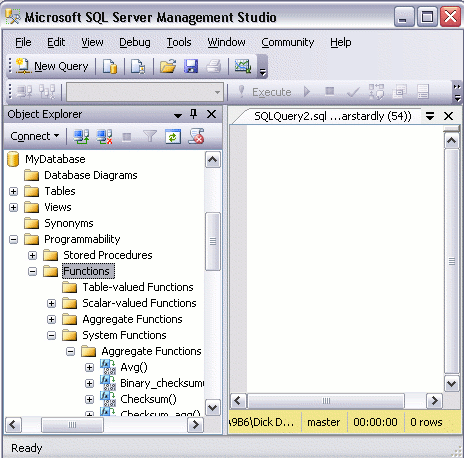
The right pane allows you to write queries against the database and view the results. In this screenshot I have opened a blank query by clicking the "New Query" button. You can also bring up other windows, such as the Properties window.
Note that I have minimized the size of the window for this screenshot. Once maximized, you have much more room to play with. You can use SQL Server Management Studio to create as many databases as you like. You can also connect to as many databases on as many servers as you like.
4. SQL Server - Create a Database
System Databases
| Database | Type | Description |
| master | System database | Stores system level information such as user accounts, configuration settings, and info on all other databases. |
| model | System database | This database is used as a template for all other databases that are created. |
| msdb | System database | Used by the SQL Server Agent for configuring alerts and scheduled jobs etc |
| tempdb | System database | Holds all temporary tables, temporary stored procedures, and any other temporary storage requirements generated by SQL Server. |
Creating a New Database
The following steps demonstrate how to create a database in SQL Server using SQL Server Management Studio.
Right click on the "Databases" icon and select "New Database...":
Your New Database
Your new database is based on the "Model" database. The Model database is a system database which is used as a template whenever a new database is created. If you use the left pane to navigate to your database and expand the tree, you will notice that your database already contains a number of objects. For example, it already contains system functions, system views, system stored procedures, and (hidden) system tables. These are system objects which provide information about the database.
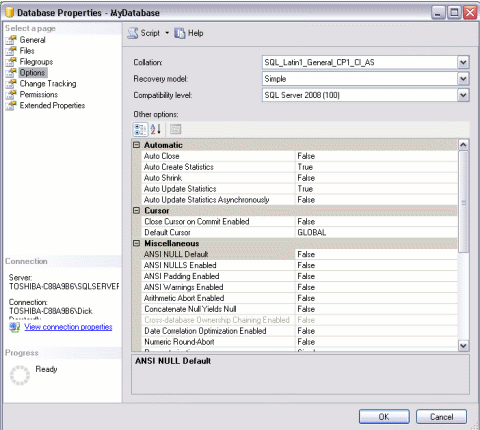
Other Options
The Properties dialog contains a large number of options for changing the configuration of your database. For now, we can leave everything at its default setting.
5. SQL Server - Create a Table
Using the values in the screenshot, complete the details in the "Column Name" column, the "Data Type" column, "Length" column, and "Allow Nulls" column.
Make the IndividualId column an "identity column", by setting "Is Identity" to "Yes" (this option is under the "Identity Specification" section in the bottom pane). Note that to set values in the bottom pane, you need to select the column name in the top pane first). This column is going to be an auto-number column - it will contain an incrementing number for each record that is created.
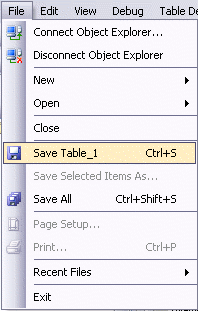
When prompted, name your table:
Your New Table
6. SQL Server - Adding Data
In the previous lesson, we created a new table in our database. We now have a database table, columns and all, but with no data.
Editing Table Rows
We can use the "Edit Top 200 Rows" option to add data to our table.
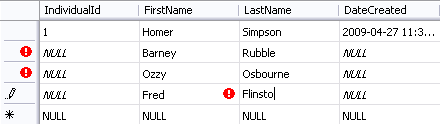
Disadvantages of Entering Data Directly to your Table
The above method is fine if you only have a small amount of data to enter or update. If you have a lot of data to enter, this could become very tedious. Also, if you have multiple environments (for example, a development environment, staging environment, and production environment), with duplicate databases configured in each environment, you will need to re-enter the same data into each environment.
A Better Method - SQL Scripts
Database Driven Websites
7. SQL Server - SQL Scripts
In the previous lesson, we added data to our database table using the "Edit Top 200 Rows" option. In this lesson, we will look at how to write SQL scripts to update and run queries against our database.
Create a New Query
Before we generate our SQL script, we need somewhere to enter it into. This part is easy. Just click the "New Query" button:
Write/Run Your SQL Script
Type your query into the workspace on the right pane
Click "Execute" (you can also press F5)
The above 'select' statement is an example of a SQL query. Apart from the occasional example, SQL queries are outside the scope of this tutorial. If you'd like to learn more about writing SQL queries, check out the SQL tutorial.
Database Administration Tasks
Most of the database administration tasks that can be performed in SSMS via the graphical user interface can be performed programmatically via SQL scripts. This tutorial concentrates on using the graphical user interface, mainly because it's usually a lot easier for new users to get their head around. Once you become more familiar with SQL Server, you may find yourself using SQL scripts to perform many of the tasks that you started out doing via the graphical user interface.
8. SQL Server - Query Designer
About The Query Designer
Building Your Queries
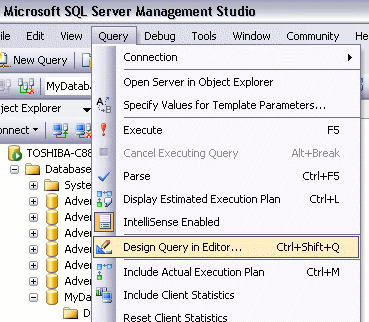
Select Query > Design Query in Editor...:
Click "OK"
Once you've clicked OK, you will find the query has been added to your workspace. You can then run it as you would any other query.
9. SQL Server - Views
Benefits of Views
Join columns from multiple tables and present them as though they are part of a single table
Present aggregate information (such as the results of the COUNT function)
Accessing Views
Creating a View
CREATE VIEW ViewName AS
SELECT ...
WHERE (((Products.Discontinued)=0))
Modifying a View
You can modify an existing view by using using ALTER instead or CREATE.
WHERE (((Products.Discontinued)=0))
You can also right click on the view and select "Design".
Running a View
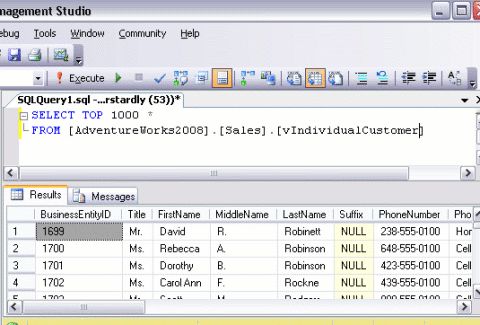
Running the above view results in this:
10. SQL Server - Stored Procedures
Benefits of Stored Procedures
Here are some key benefits in using stored procedures:
Creating a Stored Procedure
...
The following code creates a stored procedure called "MyStoredProcedure":
ORDER BY Products.UnitPrice DESC
Once you run this code in the SQL Server Management Studio, the stored procedure is created and appears under the "Stored Procedures" node.
Modifying a Stored Procedure
Running a Stored Procedure
EXEC MyStoredProcedure
If the stored procedure has spaces in its name, enclose it between double quotes:
EXEC SalesByCategory @CategoryName ="Beverages"
Using The GUI
You can also use the graphical user interface to initiate the execution of a stored procedure. To initiate a stored procedure this way:
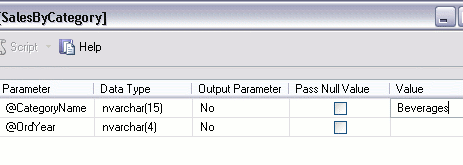
Click "OK"
Parameters
System Stored Procedures
configure security accounts
set up linked servers
and much more.
11. SQL Server - User Logins
SQL Server allows for the creation of user logins. Each individual who needs access to SQL Server can be given their own user account.
To Create a New User Login
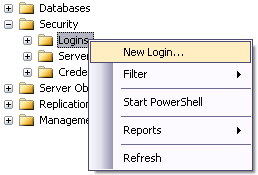
Complete the login properties in the "General" tab by providing a name for the login, choosing the Authentication method (providing a password if you choose "SQL Server authentication"), and selecting the database to use as a default. If you don't choose a language, it will use the default for the current installation of SQL Server.
Click the "User Mapping" tab to specify which databases this user account is allowed to access. By default, the login will be assigned to the "Public" role, which provides the login with basic access. If the login needs more access in one or more databases, it can be assigned to another role with greater privileges.
Note that these roles are "Database Roles" and are different to the server roles in the previous tab. Server roles are for administering the SQL Server. Database roles are created within each database and specify what the login can do within that database.